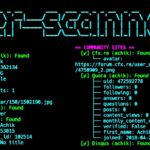
User-Scanner is an OSINT tool for scanning usernames and email addresses across multiple online platforms. It can search for matching accounts, check different websites, and collect publicly available information. It also supports cross-scanning to find connections between usernames, email addresses, and other results, with options to save the results in CSV, JSON, or PDF formats for further analysis.
What You Can Do with User-Scanner:
- Search for usernames across multiple platforms.
- Scan email addresses for matching accounts.
- Scan multiple usernames or emails from a file.
- Search platforms by category or specific module.
- Customize request timeouts, concurrency, and delays.
- Export results to CSV, JSON, or PDF.
- Use a proxy list for scanning.
- Perform cross-scanning using discovered usernames, links, and email addresses.
User-Scanner Installation Commands
You can install User-Scanner on any Debian-based Linux system using the commands below. Copy and run them in your terminal to get started.
First, update the package list:
apt update
Install Python package:
apt install python -y
Now install User-Scanner using pip:
pip install user-scanner
After installation, you can start using User-Scanner to scan usernames and email addresses from your terminal.
User-Scanner Usage Commands
User-Scanner provides several commands for searching usernames and email addresses, selecting platforms, customizing scans, and exporting results.
Show the help menu:
user-scanner -h
Show the installed version:
user-scanner --version
Scan a username:
user-scanner -u user123
Scan an email address:
user-scanner -e user@example.com
Scan usernames from a file:
user-scanner -uf usernames.txt
Scan email addresses from a file:
user-scanner -ef emails.txt
List available username scanning modules:
user-scanner -lu
List available email scanning modules:
user-scanner -le
List available email provider domains:
user-scanner --list-email-domains
Scan platforms from a specific category:
user-scanner -u user123 -c social
Scan using a specific module:
user-scanner -u user123 -m github
Enable verbose output to show website URLs:
user-scanner -u user123 -v
Show all results, including unsuccessful and skipped checks:
user-scanner -u user123 --all
Set a custom request timeout:
user-scanner -u user123 -t 10
Set the maximum concurrency:
user-scanner -u user123 -C 10
Add a delay between requests:
user-scanner -u user123 -d 1
Disable NSFW website scanning:
user-scanner -u user123 --no-nsfw
Save results in CSV format:
user-scanner -u user123 -f csv -o results.csv
Save results in JSON format:
user-scanner -u user123 -f json -o results.json
Save results in PDF format:
user-scanner -u user123 -f pdf -o results.pdf
Use a proxy list:
user-scanner -u user123 -P proxies.txt
Validate proxies before scanning:
user-scanner -u user123 -P proxies.txt --validate-proxies
Update User-Scanner:
user-scanner -U
Check infostealer intelligence using Hudson Rock:
user-scanner -u user123 --hudson
Cross-Scanning Commands
Enable cross-scanning to follow discovered usernames, links, and email addresses:
user-scanner -u user123 --cross-scan
Choose which links cross-scanning can follow:
user-scanner -u user123 --cross-scan --cross-links verified
Choose which discovered email addresses can be scanned:
user-scanner -u user123 --cross-scan --cross-emails verified
Set the number of cross-scanning rounds:
user-scanner -u user123 --cross-scan --cross-depth 2
Control the number of cross-scan sweeps:
user-scanner -u user123 --cross-scan --cross-sweep 2
These commands let you search usernames and email addresses, select scanning options, customize requests, and save results in different formats.
Overview
User-Scanner is a useful tool for searching usernames and email addresses across multiple online platforms. It supports cross-scanning to find connections between results and offers different formats to save scan reports.